



What is a wedding QR code for photos?
A QR code is a square code that a phone camera can read. Point the camera at it and a link opens. For a wedding, that link leads to an upload page tied to your event. Guests pick photos from their phone, send them, and they appear in a shared gallery.
The idea solves a familiar problem. Guests take hundreds of pictures during the day, many of them better than the official ones for candid moments. Normally those photos stay on their phones forever. A QR code gives them a tiny reason and a one-step way to share them.
How guests upload without an app
On davetvia, the QR code opens a simple web page in the guest's browser. There is nothing to download and no account to create. The guest chooses photos, taps upload and is done. It works on the phones guests already have, whether new or old.
This matters more than it sounds. Every extra step, such as installing an app, creating a login or confirming an email, loses a share of guests. A page that opens straight from the camera is the version people actually use after a long evening.
You stay in control: approval before anything is shown
Uploaded photos are not shown automatically. The couple reviews them in their panel and approves the ones that go into the gallery. You can remove anything that is out of focus, duplicated or simply not for sharing.
This is the part many couples worry about first. A shared album is lovely when it holds beautiful pictures, but it can also collect a late-night photo you would rather not keep. With approval, the gallery shows only what you chose.
The Basic package includes the guest gallery with up to 100 photos, Standard up to 500 and Premium up to 2000. See the pricing page for what each package includes.
Where to put the QR code on the day
A code only works if guests see it at the right moment. These placements tend to work well:
- A small card on each table, with a short sentence inviting guests to share their photos.
- A sign at the entrance or near the guestbook, where everyone passes.
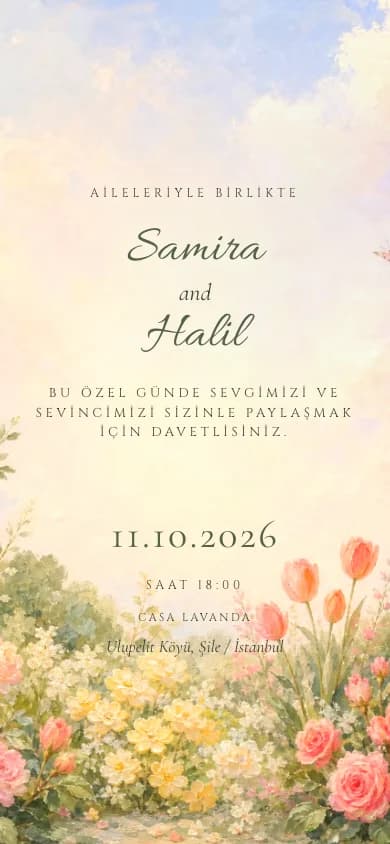
- On the invitation itself, so guests know about the gallery in advance.
- On the menu or the program card.
- On a screen or sign near the dance floor, with a reminder in the evening.
Short texts for QR cards and signs
A short message beside the code explains what to do. Here are original lines you can use on table cards, signs and invitations:
"Scan to share your photos with us."
"Your pictures are our favourite memories. Scan and upload."
"No app needed. Point your camera here and add your photos."
"Caught a lovely moment? Share it with the couple."
"Help us build our wedding album. Scan, choose, upload."
"Photos from your phone, in our album. Thank you for celebrating with us."
Gallery modes: how the photos are shown
Once photos are approved, you can choose how the gallery looks. The same set of pictures can be shown in several styles: exhibition (a classic wall with a lightbox), book, magazine, newspaper, classic album, polaroid, yearbook and a pinboard-style moodboard.
This is more than decoration. A book or classic album fits a quiet, elegant celebration. A polaroid or moodboard suits a playful event. A magazine layout turns the best photos into a spread you will be proud to share with relatives.
Guests can switch between styles when they view the gallery, which makes it fun to browse on a phone.
Putting the QR code on your invitation
When you publish a davetvia invitation you receive a link and a QR code. The guest gallery is part of the same celebration page, so your guests can discover it from the invitation, and you can share the gallery link again after the event with a thank-you message.
If you have not built your invitation yet, browse the template gallery and start at create your invitation. You can preview for free before choosing a package. To plan the rest of the guest experience, read about digital wedding invitations and how to send them through WhatsApp.
Tips to get more photos from guests
A QR code is a quiet request, and guests respond better when you remind them kindly. These small habits help:
- Mention the gallery in the invitation or in a reminder message before the day.
- Ask the host or the master of ceremonies to announce it once during the evening.
- Place codes where guests wait or sit, not only at the entrance.
- Send a thank-you message the next day with the gallery link and a gentle ask for any photos still on phones.
- Keep the text on cards short. A code and one sentence is enough.
Privacy and sharing
The gallery is meant for your guests and family. Only approved photos are shown, and you decide whom you share the link with. If someone in a photo asks you to remove it, you can take it down from your panel.
Before the day, consider telling guests that the photos will be shared in a private gallery for the wedding party. A short line on the invitation or a table card is usually enough.
Templates for this occasion
Open a live preview and personalise it in minutes.
Frequently asked questions
Do guests need to install an app to upload photos?
No. They scan the QR code with their phone camera and a web page opens in the browser. They choose photos and upload them without an account.
Can I approve photos before they appear?
Yes. Photos wait for your approval, and only the ones you approve appear in the gallery.
How many photos can the gallery hold?
The Basic package includes up to 100 photos, Standard up to 500 and Premium up to 2000.
Can guests upload photos after the wedding?
Yes, the link keeps working, so you can share it again after the event and ask guests to add the photos they took.
Can I print the QR code?
Yes. You receive the QR code with your invitation and can add it to table cards, signs and printed save-the-dates. Printing the materials themselves is up to you.
What gallery styles are available?
Exhibition, book, magazine, newspaper, classic album, polaroid, yearbook and moodboard.